disktree
A treemap for finding and removing what fills your disk, on Omarchy, macOS and Windows. Directories drawn as a nested mosaic sized by real disk cost and colored by kind of data, with reclaimable space hatched and marks reviewed before anything is trashed or deleted.
disktree
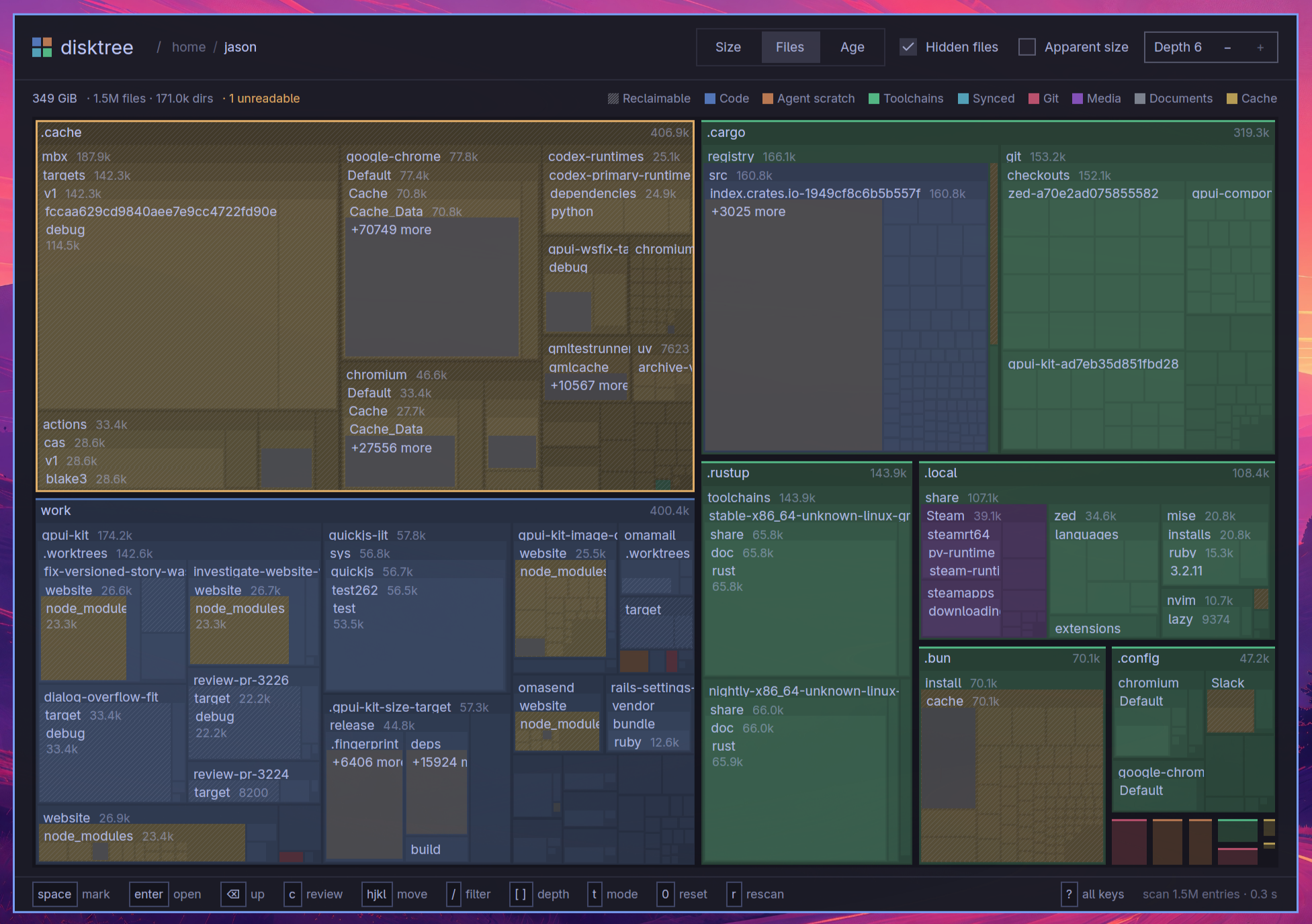
disktree finds what is filling a disk, lets you mark what should go, and removes it, with the volume's free space in view the whole time. It scans your home directory by default and draws every directory as a nested mosaic sized by what it really costs on disk. Built with GPUI through gpui-omarchy, it follows your Omarchy theme and behaves like the rest of the desktop. The same app runs on macOS and Windows, following the system's light or dark setting there.
See what kind of data it is
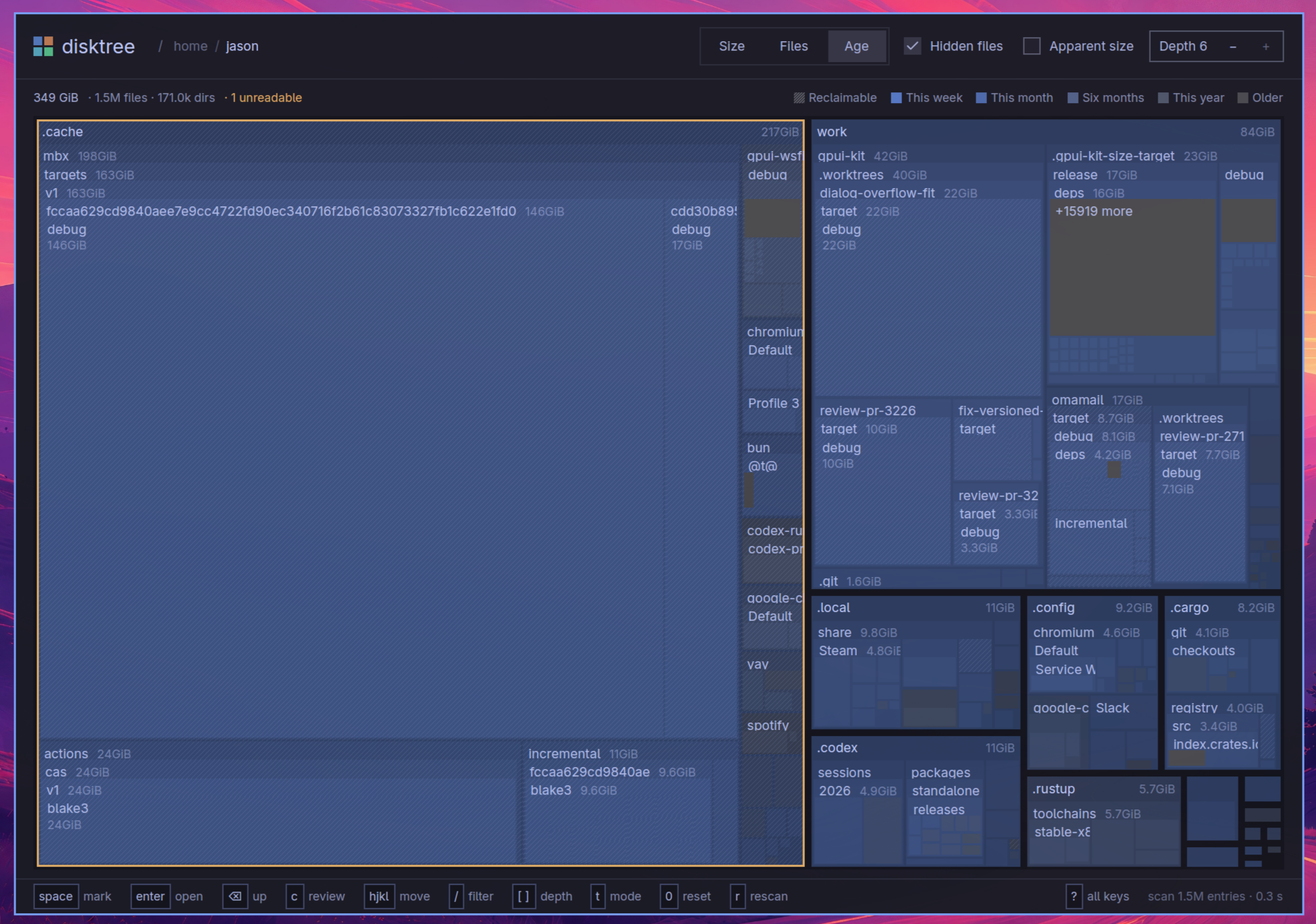
Color is the kind of data: code, agent scratch, toolchains, synced files, git, media, documents and caches. A diagonal hatch marks space that can be had back, such as caches, sync history, package stores and build output. In Age mode color shows the last write instead, and the mosaic can also rank by file count.
Walk into it
Scroll to magnify toward the pointer; once a directory fills the view, the next notch goes into it. The trail at the top jumps to any ancestor or sideways to a sibling, and a name filter keeps only matches in color. Everything is reachable from the keyboard as well as the mouse.
A panel that knows what matters
The side panel shows the selection's size, share of the scan, file count, last write and, for a checkout, what git says about changes, stashes and unpushed commits. Worth a look lists the largest things that could plausibly go, and the disk section shows free space now and after the marks.
Mark, review, then remove
Marking is reversible and never counted twice. Nothing happens until you open the review list and commit: moving to the trash is the default, and permanent deletion always asks first. Removal refuses the scanned root, your home directory, mount points and system trees, and disktree rescans afterward to show the space actually gained.
The whole disk
Widening the scan from home to the whole disk reuses the tree already measured, so only what lies outside it is read. A scan stays on one volume, counts hardlinks once and skips snapshot subvolumes so nothing is counted twice. A volume picker lists every mounted disk with its free space, fullest first, to scan another one in a keystroke.
On macOS and Windows
On macOS, removal goes to the system Trash, cloud-only folders are never downloaded by a scan, and the panel points to Full Disk Access when macOS is hiding data. On Windows, removal goes to the Recycle Bin, and when run as administrator a whole NTFS drive is read straight from the master file table, which is much faster than walking the directories. Each platform keeps its own system folders and user profiles off limits.