BuMoSm PDF Viewer
A simple PDF viewer for Windows built with Rust and GPUI. Smooth scrolling, tabs, text and regex search, bookmarks, a page editor to extract, delete, insert and combine pages, a print preview screen, invert colors, and custom themes.
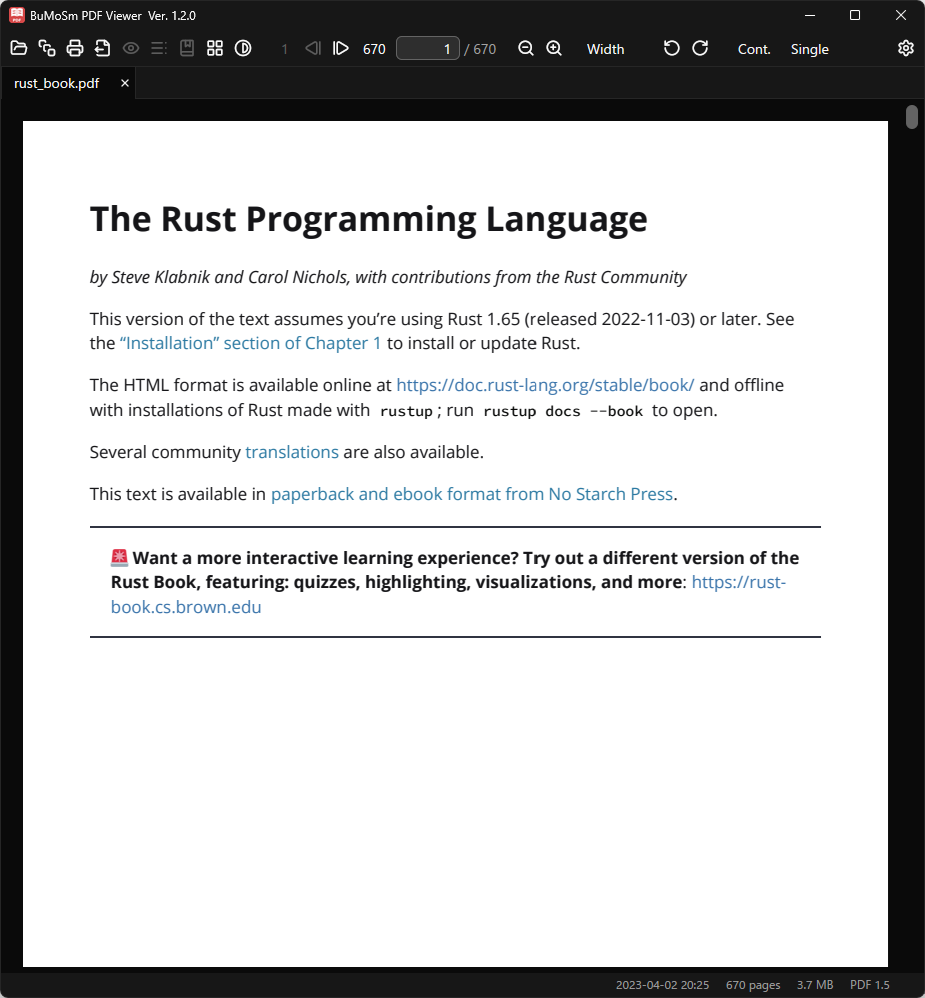
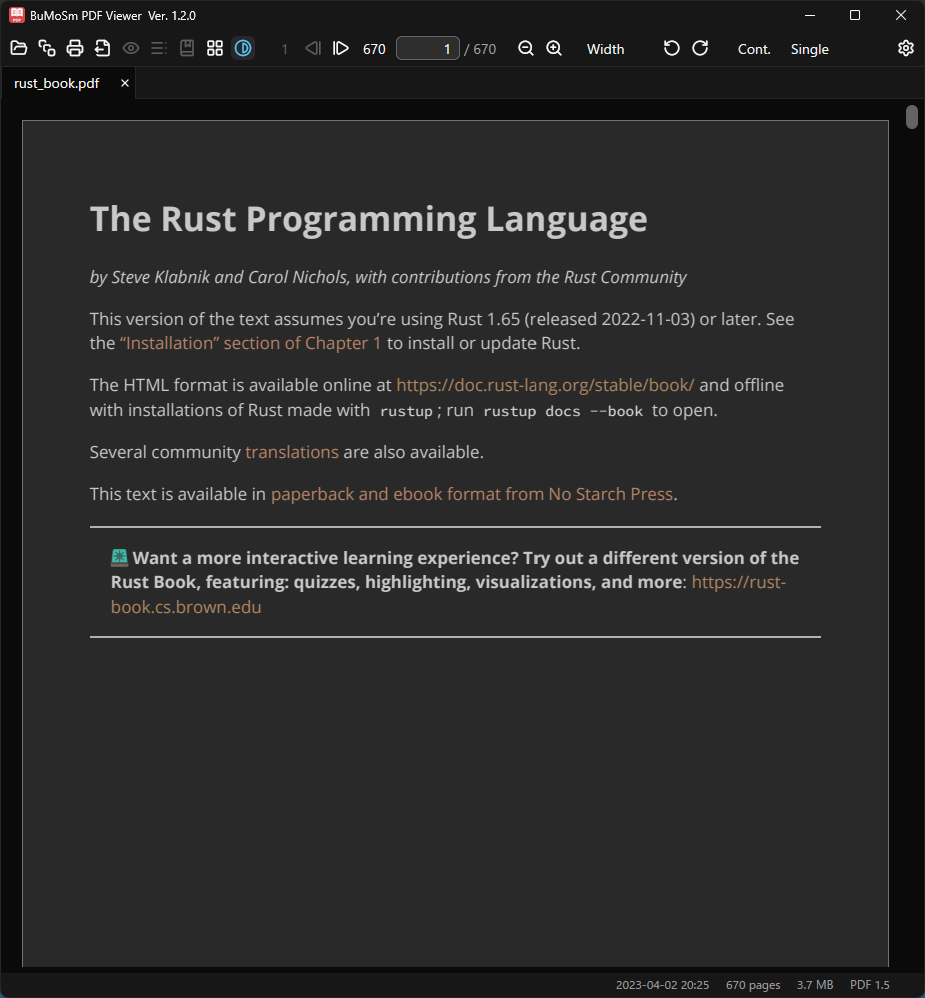
BuMoSm PDF Viewer
BuMoSm PDF Viewer is a simple PDF viewer for Windows, written in Rust with GPUI. GPU-accelerated rendering keeps CPU usage low, and it falls back gracefully to CPU rendering on systems without a dedicated GPU. It runs on Windows 10 or later.
BuMoSm stands for Buttery Motion Smooth: silky-smooth scrolling that feels as fluid as butter.
Read comfortably
Choose continuous scrolling or single-page display, and a single page or a two-page spread with cover-page and left- or right-binding options. Zoom is gathered into one toolbar control with fit-to-width, fit-to-page, actual size and a numeric field, and Ctrl + mouse wheel zooms around the cursor. Pages can be rotated clockwise or counter-clockwise. Scroll speed and acceleration are adjustable, and on battery the frame rate can be capped at 30 FPS.
Find and navigate
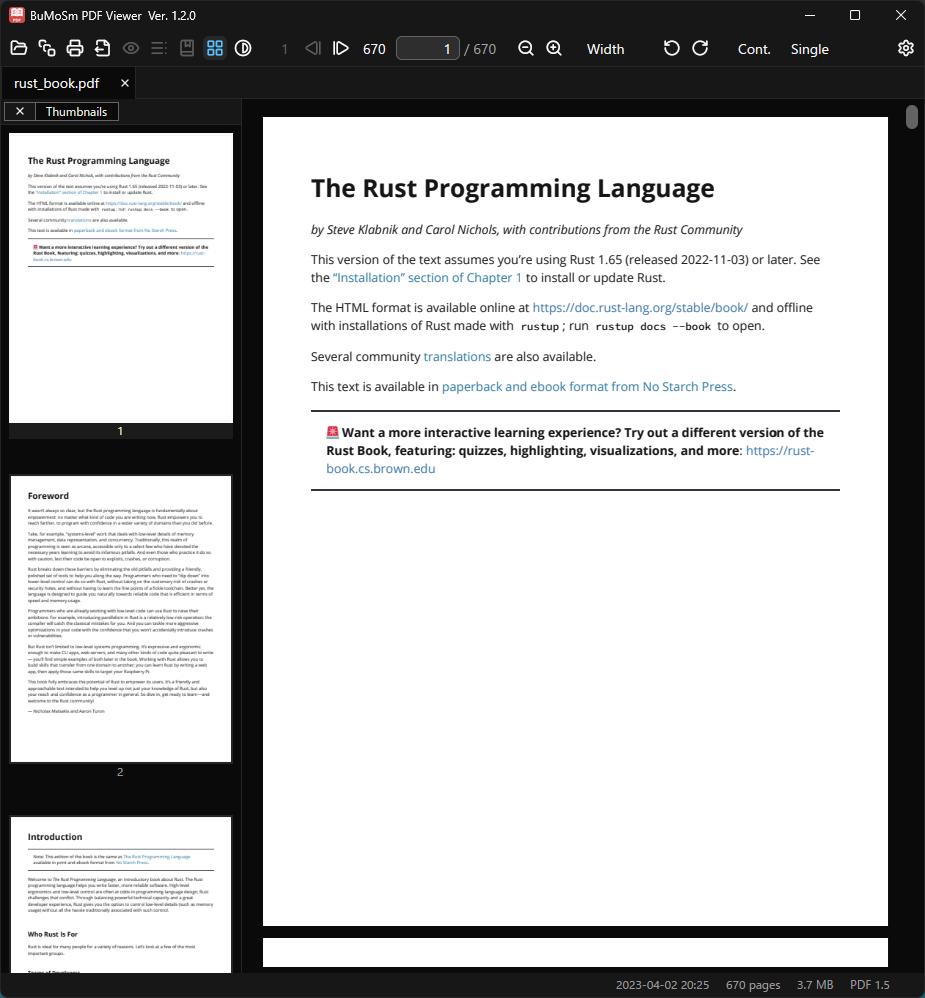
Search with match-case and whole-word options, or switch to regular expressions. The search starts from the page you are on and spreads outwards, so nearby matches appear first, and each document keeps its own search history. An outline panel and a thumbnail panel make it easy to jump around, links inside a PDF work (page links jump to the target, web links open in the browser after a confirmation), and the status bar shows the title, author, creation date, page count, file size, PDF version and the chapter you are reading. Open several PDFs in tabs and reorder them by dragging.
Pick up where you left off
Save named bookmarks per document, or set a single "read up to here" marker with one key and jump back to it with another. The recent files list restores the last page of each file, and the window reopens at its previous position, size and monitor.
Edit pages
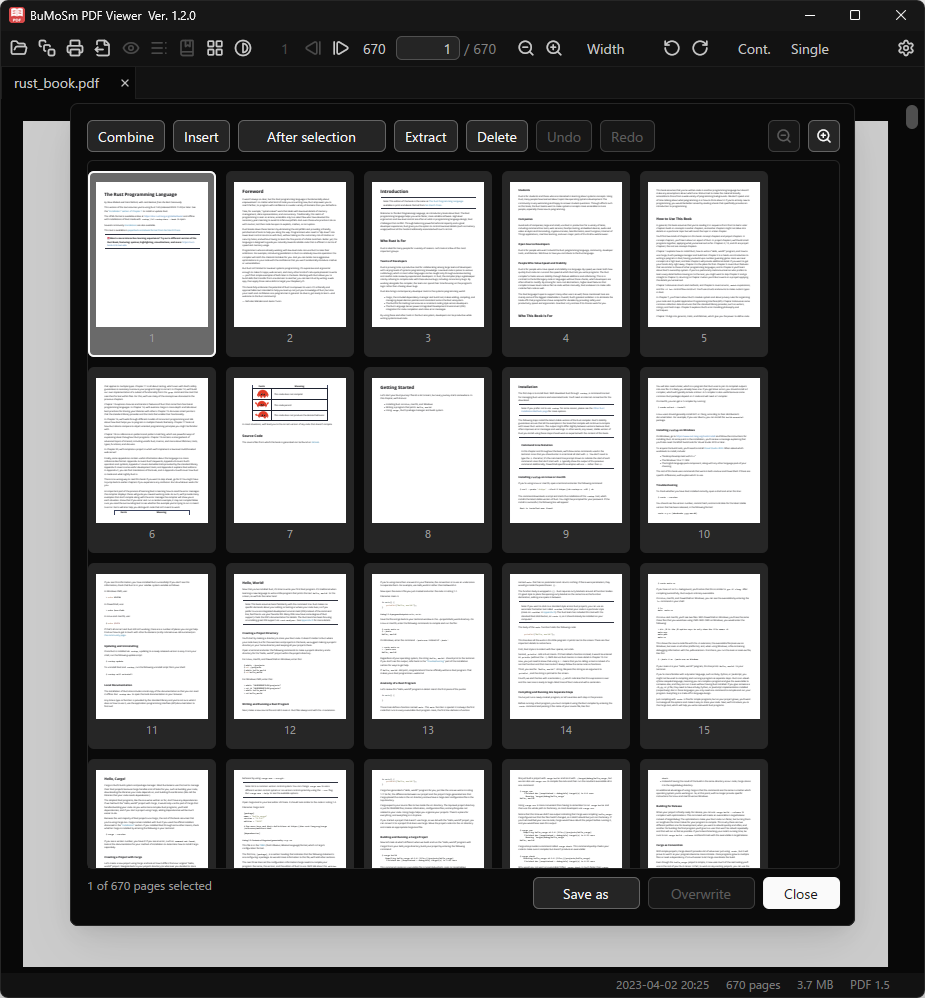
The page editor shows the pages of the open PDF as thumbnails. Select pages and extract them, delete them, insert another PDF before or after them, or combine PDFs. Dropping a PDF onto the window inserts it between the nearest pages. Edits only change the working list, with undo and redo, until you save. Save as a new file, or over the open file while keeping the original as a backup copy. Thumbnails can be enlarged up to one page per screen, and every operation is also available from the keyboard. The table of contents, page labels and document properties are not carried over to the saved file, and password-protected PDFs or PDFs whose author has not allowed editing cannot be edited.
Print with a preview
A dedicated print screen puts the settings on the left and a scrollable preview on the right that shows exactly where each page lands on the paper. Choose the printer, number of copies and pages such as "1-3, 5". Paper size, orientation, color and two-sided printing are set in the printer's own preferences and remembered per printer. Pages are fitted to the paper, and rotated pages stay rotated. Printers that accept PostScript receive the fonts, so the printed PDF keeps selectable and searchable text.
Read in the dark
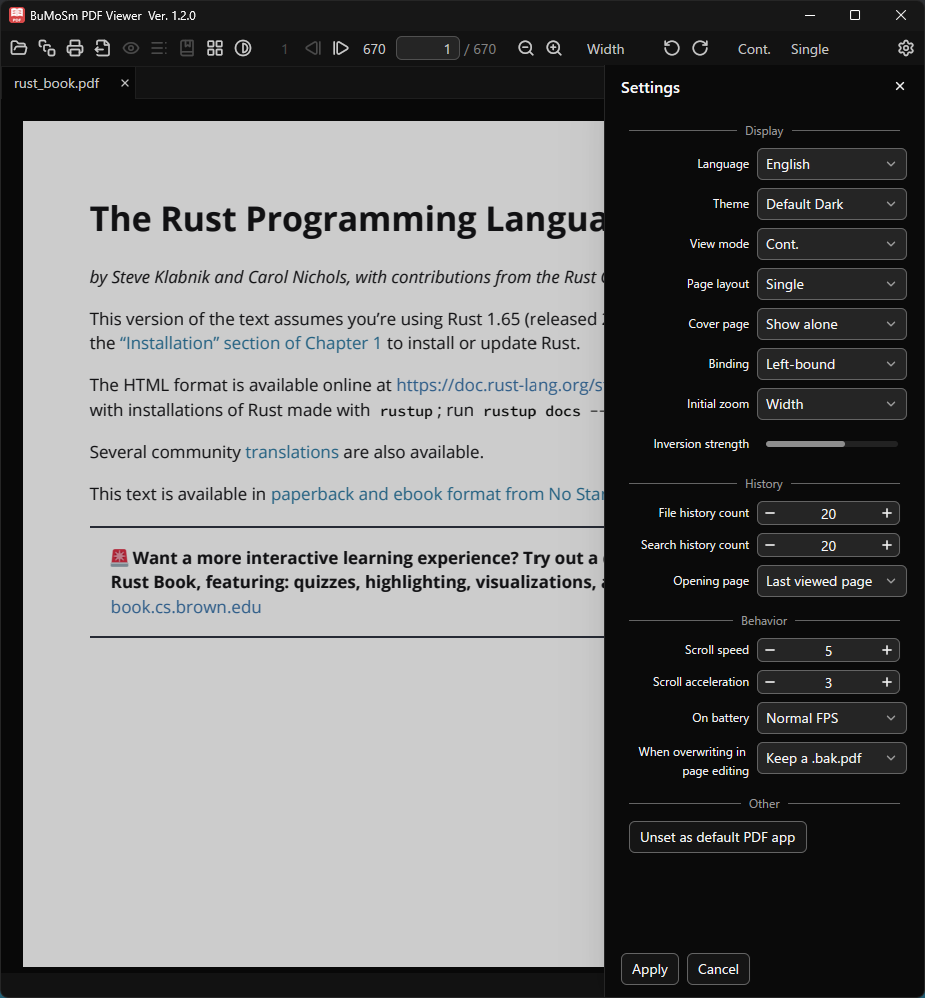
Invert the page colors with a single key, with the strength adjustable from 60% to 100% while the page behind the settings panel updates live. Inversion is not remembered between launches. Built-in light and dark themes are included, along with a follow-the-system option and custom themes loaded from simple JSON files that take effect immediately.
Everyday conveniences
- Password-protected PDFs are supported
- Select text by dragging, even beyond the visible area, and copy it
- A notice appears when the open file is rewritten by another program, and a single click reloads it while keeping your page, zoom, rotation and color inversion
- Nearly every operation can be done from the keyboard, with a full shortcut list on F1
- Register the app as the default PDF viewer from the settings screen
- Only one instance runs at a time; launching a second one brings the existing window to the front
- Switch the display language between English and Japanese in Settings, and add more languages by copying a language file